Blackboard Ultra offers several ways to provide extra credit opportunities for students. The best method depends on whether you want to add bonus questions to an assessment, award points for optional activities, or provide additional points to individual students.
This article outlines the three common approaches and when to use each one.
Option 1: Add Extra Credit Questions to a Test
Use this method when you want students to earn bonus points as part of a quiz or test.
When creating or editing a test, individual questions can be designated as Extra Credit questions. Students earn points for correct answers, but incorrect answers do not reduce their score. Students may earn a score greater than 100% on the assessment if they answer extra credit questions correctly. Extra Credit Assessments in Blackboard Ultra
Recommended Uses
- Bonus questions on quizzes and exams
- Opportunities for students to earn back points
- Enrichment questions that go beyond required course content
Benefits
- Seamlessly integrated into an assessment
- Automatically calculated by Blackboard
- No additional Gradebook columns required
Option 2: Create a Separate Extra Credit Gradebook Item
Use this method when you want to award points for optional activities completed outside of a regular assessment.
Create a new Gradebook item and set the maximum points to 0. You can then enter extra credit points earned by students. Blackboard treats these as additional points rather than part of the graded total.
- Navigate to your Blackboard Ultra Course.
- Click Gradebook.

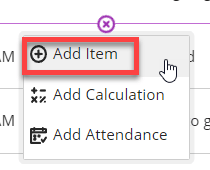
- Click the plus sign (+) where you want the new gradeable item to appear.

- Click Add Item.
- Name the Column and set the Maximum Points to 0.
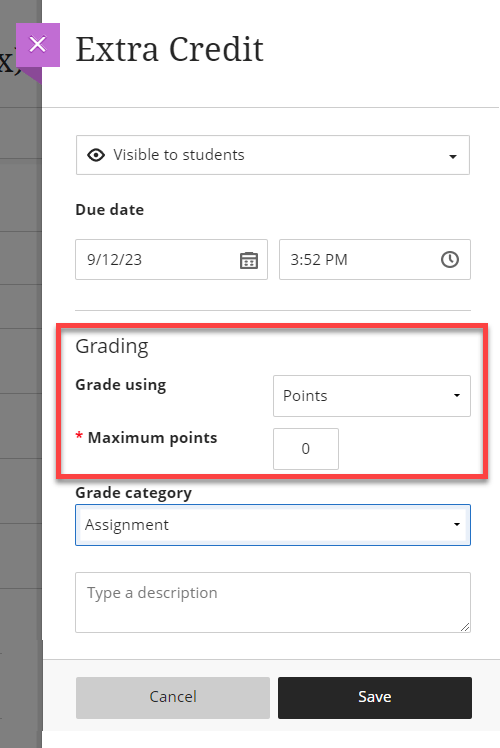
NOTE: It is important to consider what Grade category you place your new gradable item in if you are using weighted categories. This can impact how much the extra points can affect a student’s final grade. You may want to consider creating a category specifically for Extra Points.
- Click Save.
You can now click on your new gradeable item and add points for each student.
Recommended Uses
- Optional workshops or events
- Attendance incentives
- Bonus discussion participation
- Voluntary assignments
- Professional development activities
Benefits
- Easy to manage and track
- Flexible for individual or class-wide opportunities
- Students can clearly see the source of extra credit
Important Consideration
If your course uses weighted grade categories, consider carefully where the extra credit item is placed. The category assignment may affect how extra credit impacts the overall grade. Some instructors create a dedicated "Extra Credit" category for consistency. Setting up the Overall Grade in Blackboard Ultra
Option 3: Manually Adjust a Student's Grade
Use this method when awarding bonus points to an individual student.
In the Gradebook, locate the student's score and manually add the appropriate number of points.
Recommended Uses
- Individual accommodations
- One-time bonus opportunities
- Special circumstances
Benefits
- Quick and simple
- No additional setup required
Considerations
Because the extra credit is not represented by a separate gradebook item, it may be less transparent when reviewing grades later in the term.
Need Additional Help?
Contact PioTech Training for assistance with Blackboard Ultra gradebook setup, weighted grading calculations, or best practices for implementing extra credit opportunities in your course.